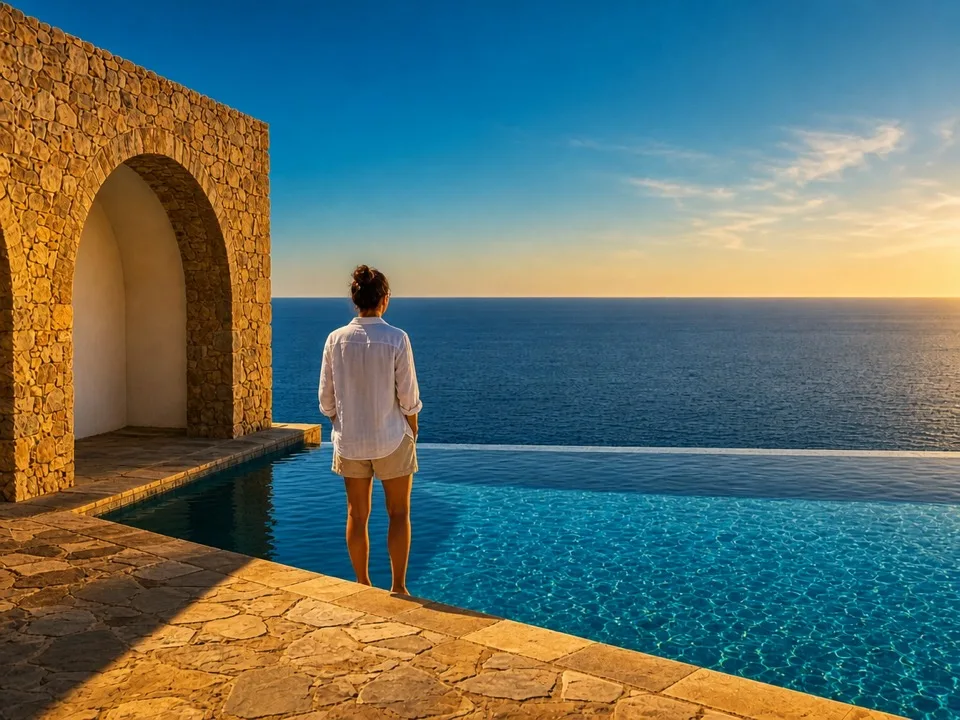
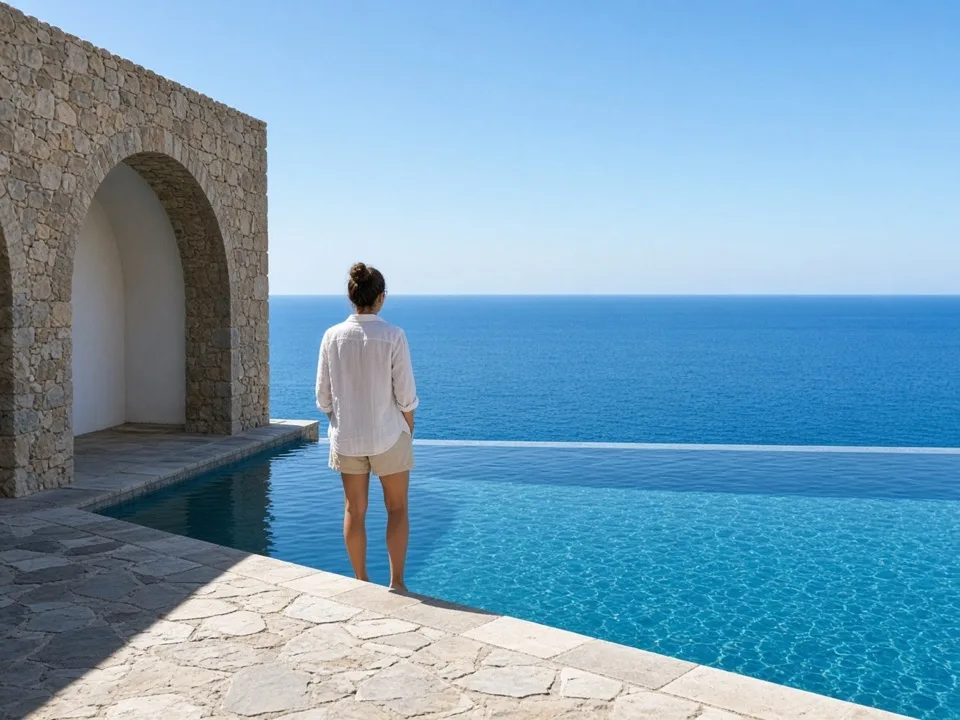
What Image to Image AI Does
Image to image AI takes a photo you already have and redraws it from that reference. You upload a picture, type a short prompt, and the model keeps the composition and subject while changing style, background, lighting, or surface detail. The result is a new image that still reads as the same shot—not a blank canvas filled from words alone.
That is the practical difference from starting with text only. Text-from-scratch generation invents layout, pose, and subject from the prompt. Image to image begins with your pixels: face placement, product angle, and framing stay the anchor, so edits stay useful for listings, posts, and personal photos. Use this page when you want a new look from a real reference. Use a blank prompt flow only when you have no photo to build on.
Three Ways to Use Image to Image AI
Restyle a Photo in Any Look
Keep the same person, product, or scene, then ask for a new look: pixel art, cartoon, anime, oil paint, or film grain. Image to image AI starts from your upload, so the pose and framing stay recognizable while the surface changes. Write one short line about the style you want, or begin from the Restyle photo example and edit the prompt. When you only need a colour swap without a full redraw, open the image color changer instead. Image color changer
Change the Background Without Touching the Subject
Swap a cluttered desk for a soft studio wall, move a product into daylight, or shift the season around a portrait. The model reads your reference first, so the subject usually stays where it was while the setting updates. Describe the new scene in plain words—lighting, place, mood—rather than listing every object. If something in the frame should disappear entirely before you restyle, clear it with remove object from photo, then come back here for the new environment. Remove object from photo
Reimagine an Old or Damaged Photo
A faded print or a soft phone snap can become a fresh picture while faces and layout remain the anchor. Use image to image when you want a redrawn look, not only sharper pixels. Ask to keep the people recognizable and name the era or mood you want. When the print is scratched or torn and you need repair before any style change, restore old photos first, then return to image to image for a new finish. Restore old photos
Who Uses It
E-commerce Sellers
One product photo can become a set of listing shots: same item, new table, new light, new season. Upload the hero frame, describe each scene, and download variants without rebuilding a studio. Keep the product wording consistent in every prompt so the item stays the star across the set.
Social Media Creators
Turn one selfie or lifestyle frame into posts that match different platforms—warmer tones for one feed, flatter graphic colour for another. Image to image keeps your face and pose while you batch a few looks from the same upload, then download each version for the calendar.
Everyday Users
A quick phone shot is often almost right. Upload it, say what should change—cleaner background, softer light, a different mood—and get a picture you are willing to send. No account is required to try a run with the daily free credits.
How It Works in 3 Steps
- Upload a reference image
JPG, PNG or WebP · up to 20 MB. The file stays private to this run until you hit Generate.
- Describe the change
Write one sentence about style, background, or mood—or start from a preset prompt and edit it.
- Generate and download
No watermark on the file. Stored copies auto-delete in 7 days.