Replace color in image when only one object should change. Sample the mark, set a hex, and control how tightly it matches.
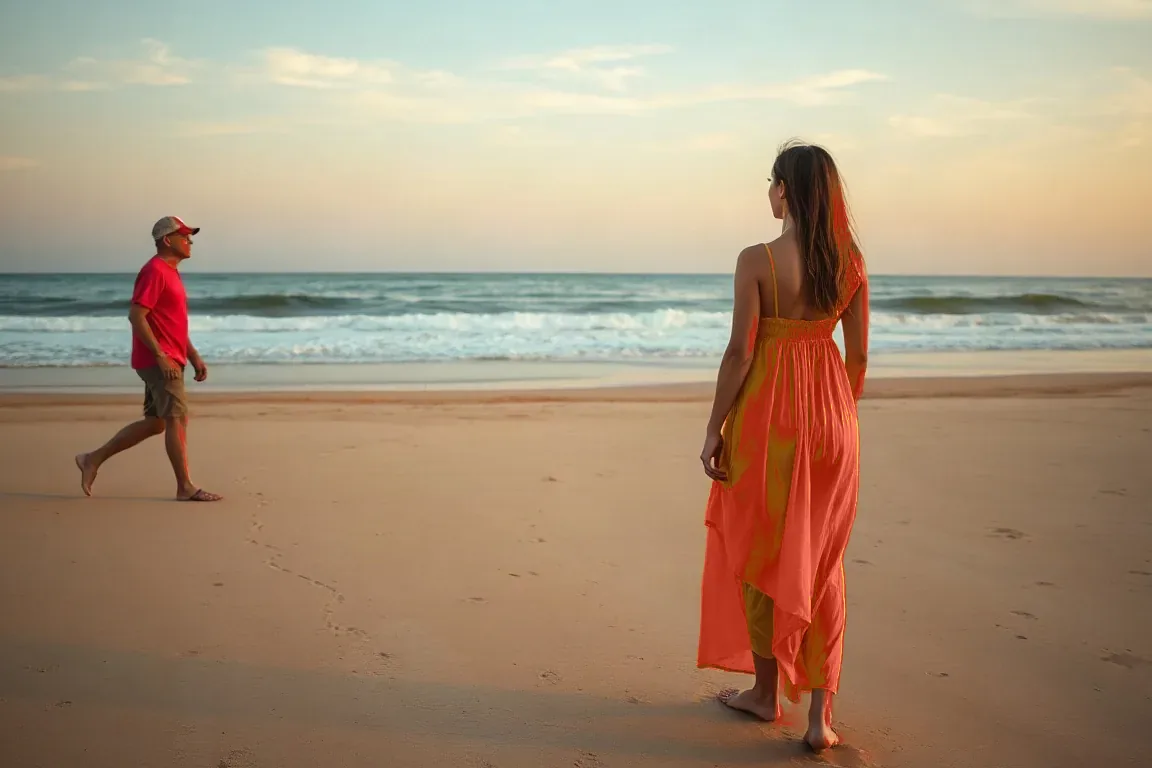
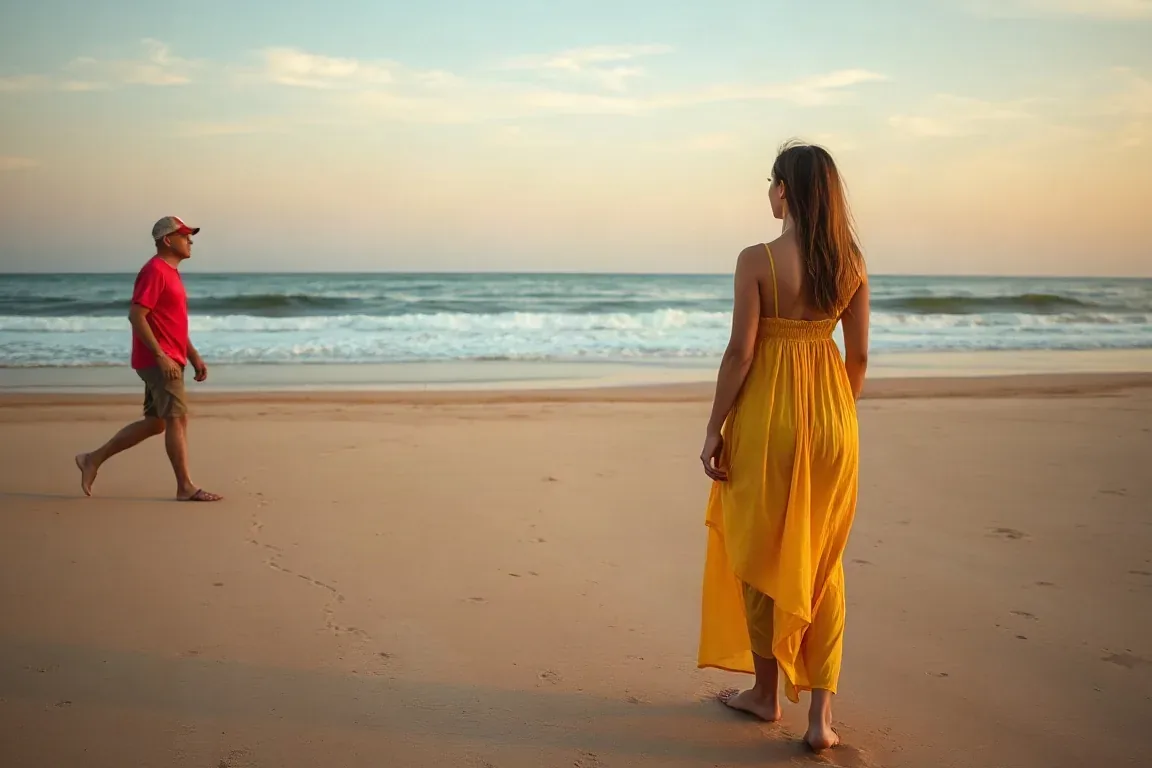
A real input and its processed result. Upload a clear image with one main subject to try your own.
Actual local editor outputs.
Drag to compare, or open an example.
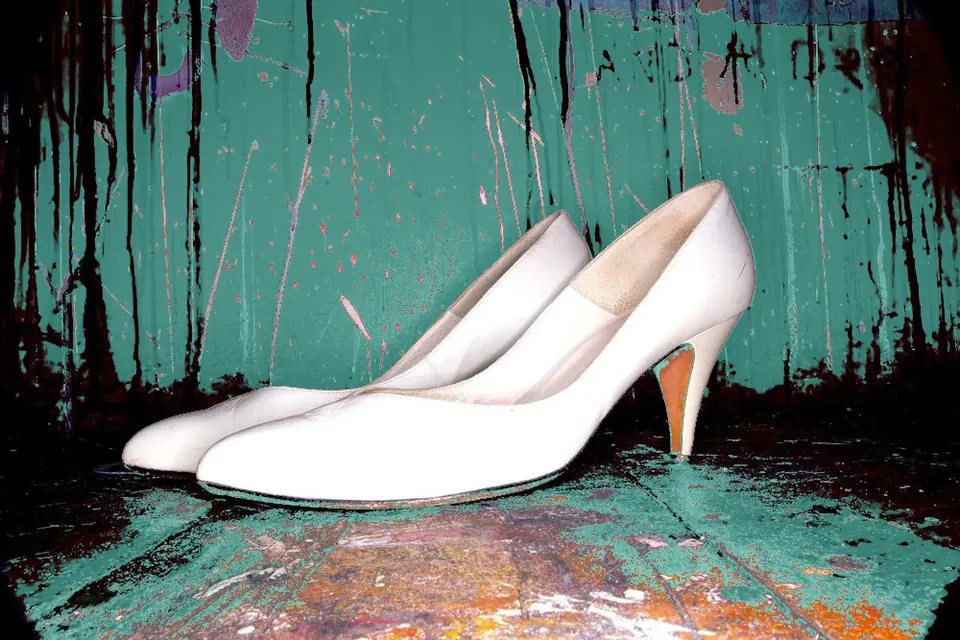
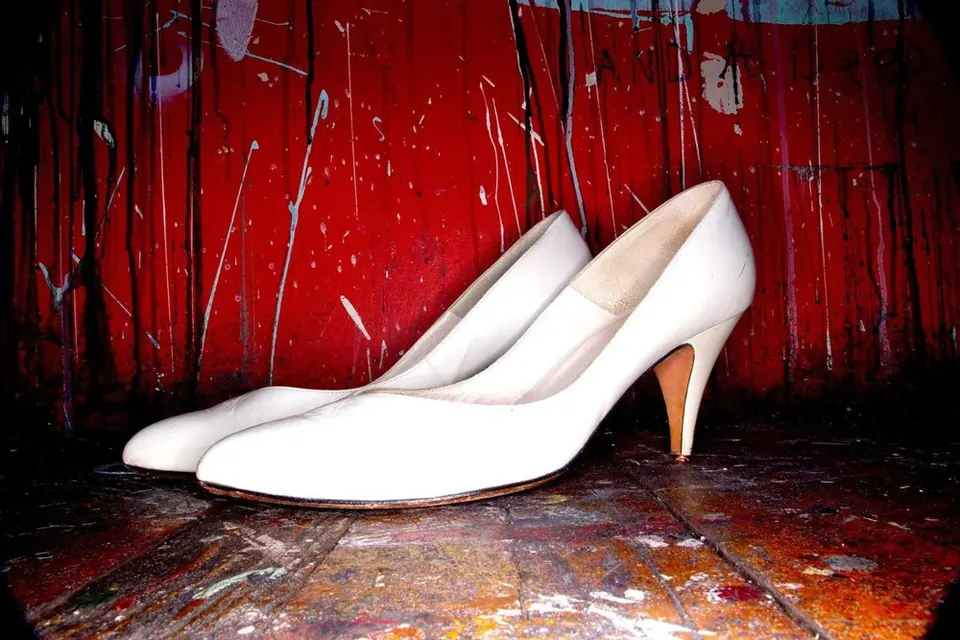


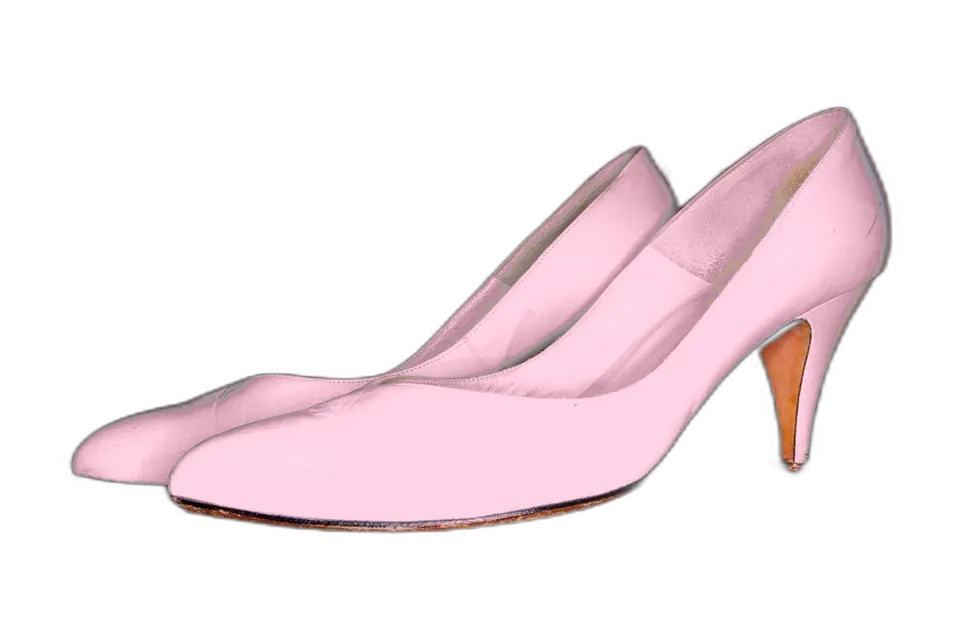
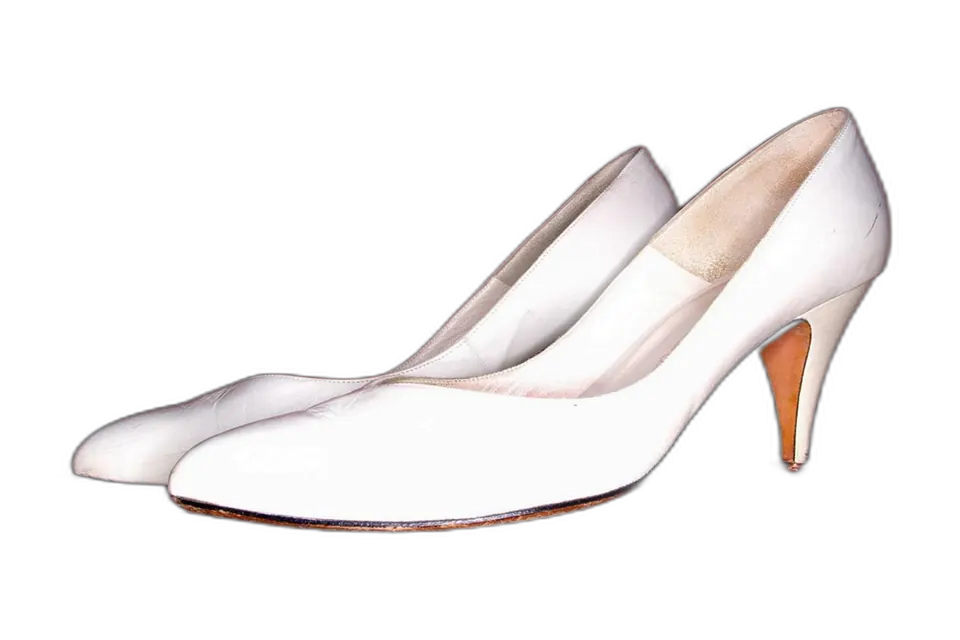


Sample the flat fill you want to change and enter the brand hex. Keep tolerance low on multi-color marks so neighboring shapes stay put.
Click the accent midtone on the object, preview at a moderate tolerance, then tighten if nearby surfaces start to shift.
If the object shares its color with the background, describe that object in AI mode so the edit stays selective. AI costs 2 credits; local replace stays free.
Replace color in image for a logo fill, an icon or a product accent. Whole-photo palette shifts stay on Image Color Changer.
Image Color Changer is the main color page for a whole photo, a background, a logo, or a transparent PNG.
This page is for replacing the color of a chosen object or region — a logo mark, an icon fill, a product accent — with an exact hex. Image Color Changer covers whole-image palette shifts, backgrounds, logos and transparent PNGs in one hub.
Sample the object’s midtone, set a low-to-moderate tolerance, and preview. If the same shade appears elsewhere, tighten tolerance or use AI and name the object in the prompt.
Zero tolerance replaces exact RGB matches only. Higher tolerance includes nearby shades with a softened boundary to avoid harsh edges.
Yes. Fully transparent pixels stay unchanged. Export PNG or WebP. JPG flattens onto white.
Yes. Local replace runs in your browser with no account, watermark or credits. Optional AI recolor costs 2 credits and refunds failed jobs.
Local replace is free in the browser, with no account. The AI option costs 2 credits per run and refunds a failed job.
Version 1.1 · Updated 16 November 2026