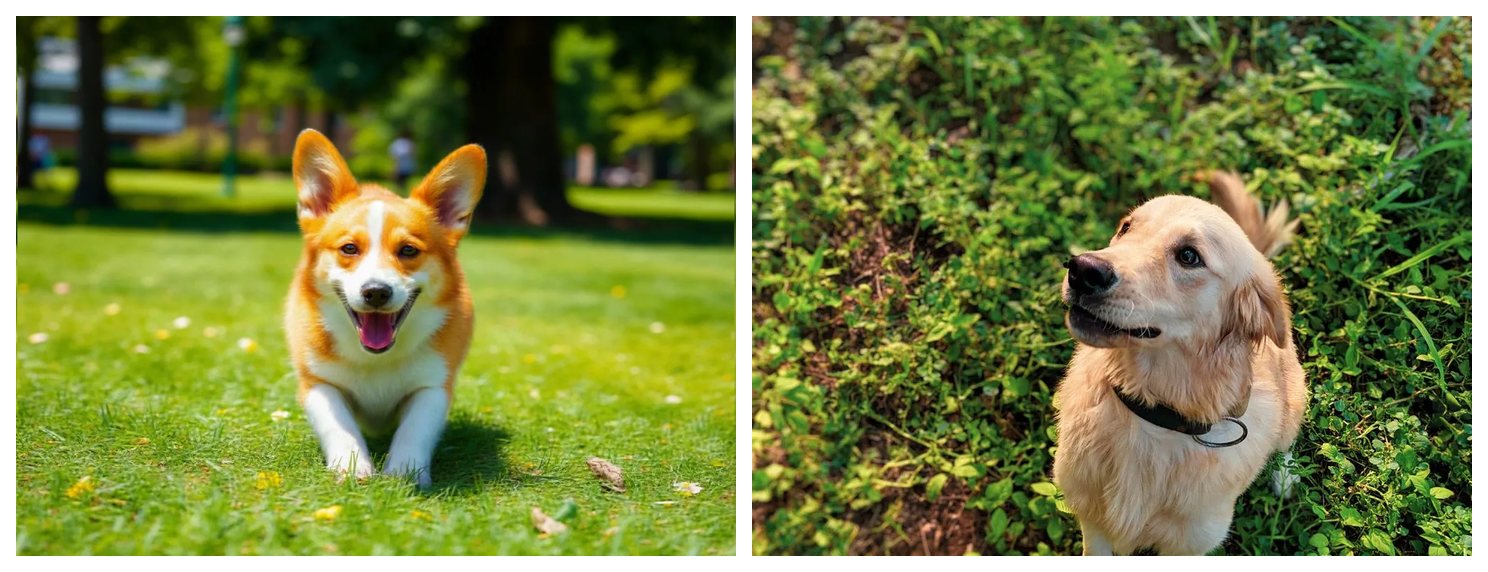
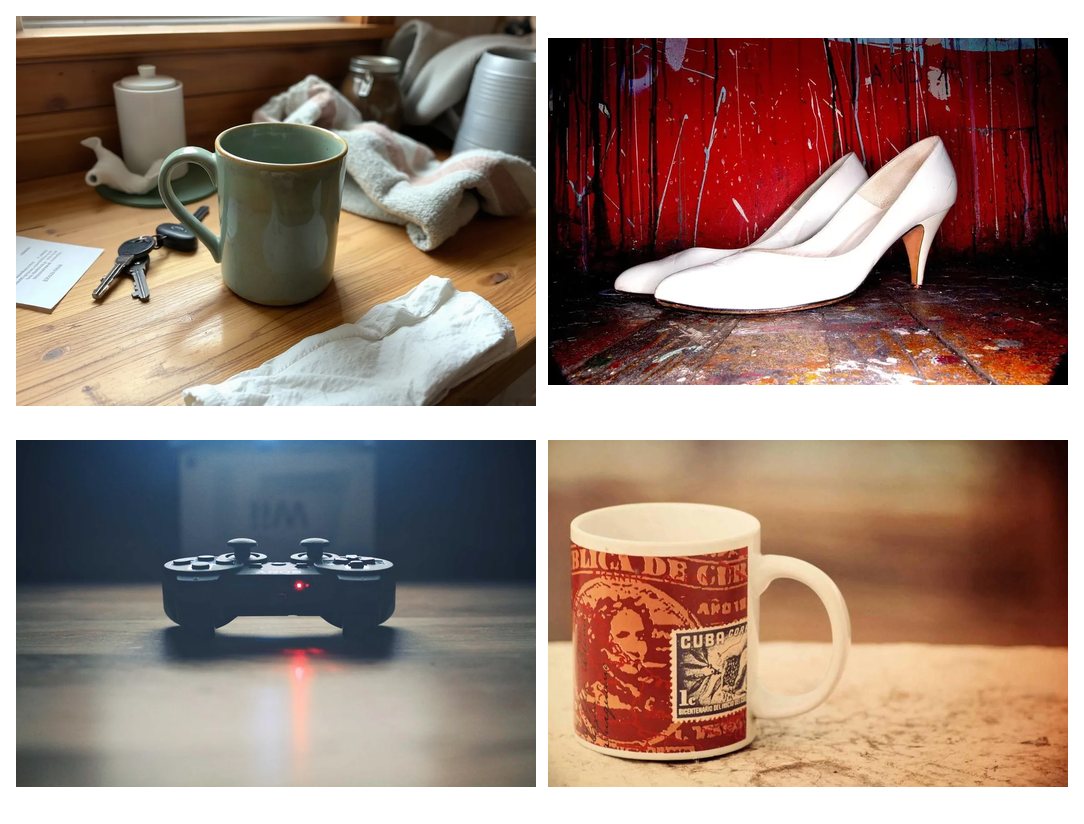
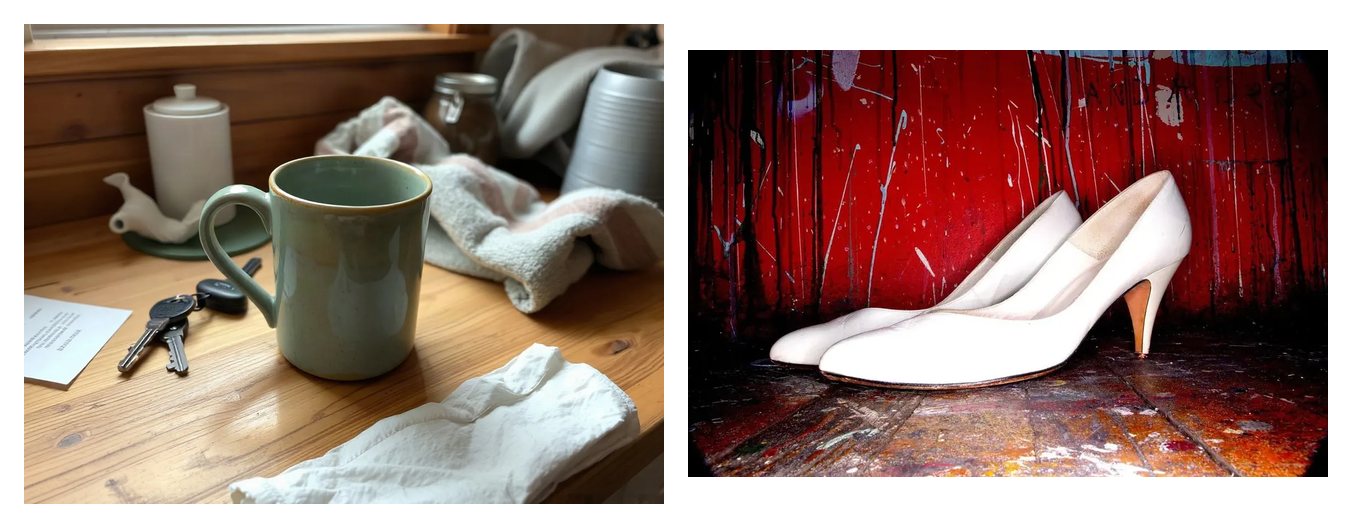
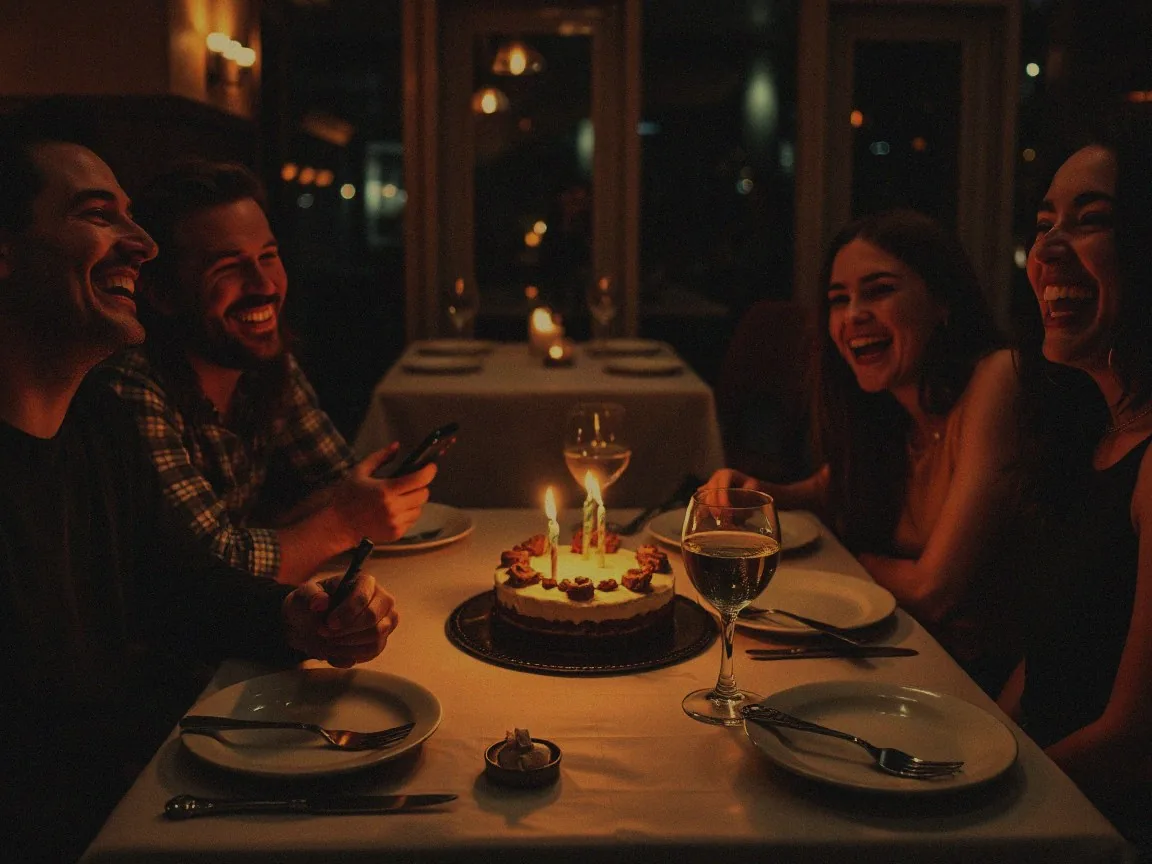
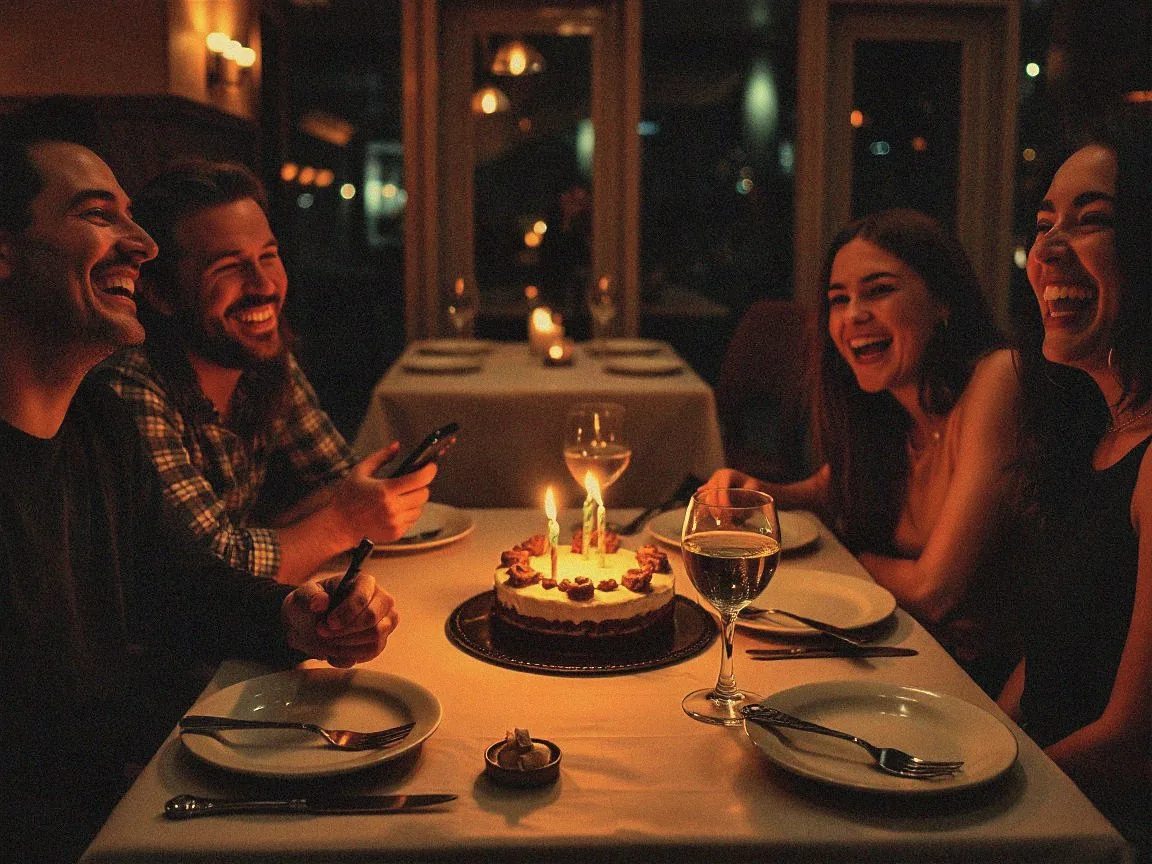
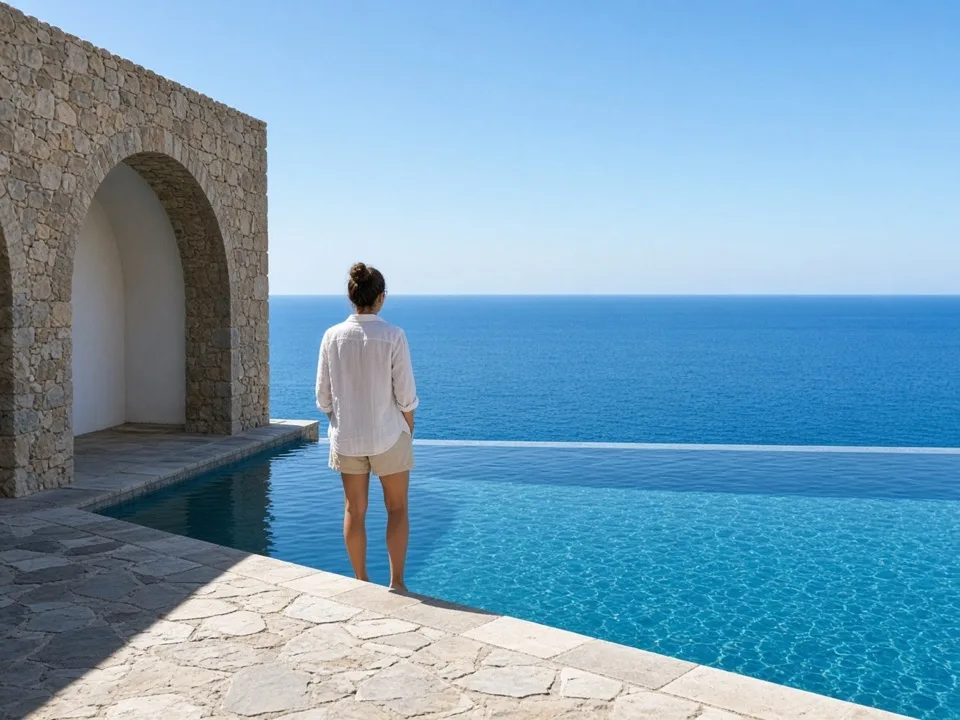
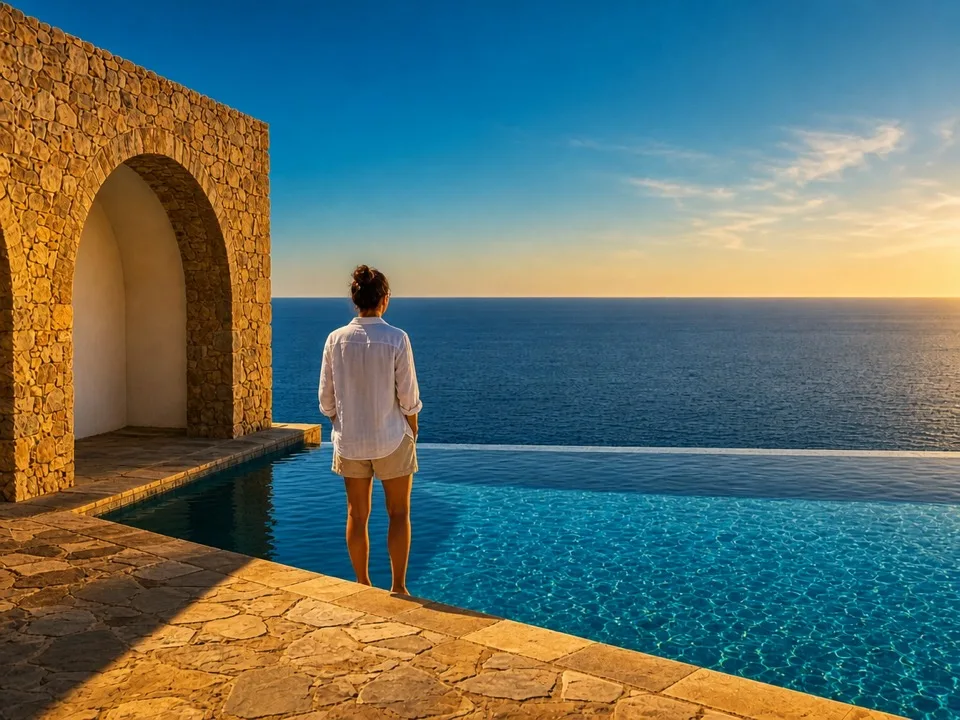
Photo combiner for two or more images: combine images side by side, merge two photos into one, stack screenshots into one long image, or build a grid — all in your browser. Merge images online, pick a layout, match sizes, set the gap, and download PNG, JPG or WebP. No sign-up, no watermark, and nothing is uploaded.
No upload · no watermark
FreeNot uploaded. No credits.JPG, PNG or WebP
YOUR FRAME0 / 36
Drop photos here.
Two is the usual pair. Up to 36 in one frame.
Combine Images Online Free, Without Uploading
Combine images online in your browser: the merge runs on your device, so the files are never uploaded. This page does not generate new pixels — it only arranges the images you already have into one downloadable frame, with no account and no watermark on the export.
Photo Combination: Join Photos Into One Frame
A photo joiner and a photo combiner do the same job: they join two or more photos into one frame and export a single file. Search results often split the wording — join, joiner, combine, combiner, merge — but on this page they all mean placing your own pixels next to or on top of each other, not generating new ones.
People look for a photo joiner when they need a chat collage, a before-and-after pair, a product set in one listing image, or several screenshots stitched into one tall PNG. You add the files, pick side by side, stacked, grid or overlay, set a gap if you want a border, and download. The join runs in the browser; nothing is uploaded, and the PNG has no watermark.
If you arrived from “join photos” or “photo joiner”, you are in the right place. Use this photo combiner when the goal is one arranged frame from the images you already have — not an AI blend that invents the space between them.
Put Two Pictures Side by Side
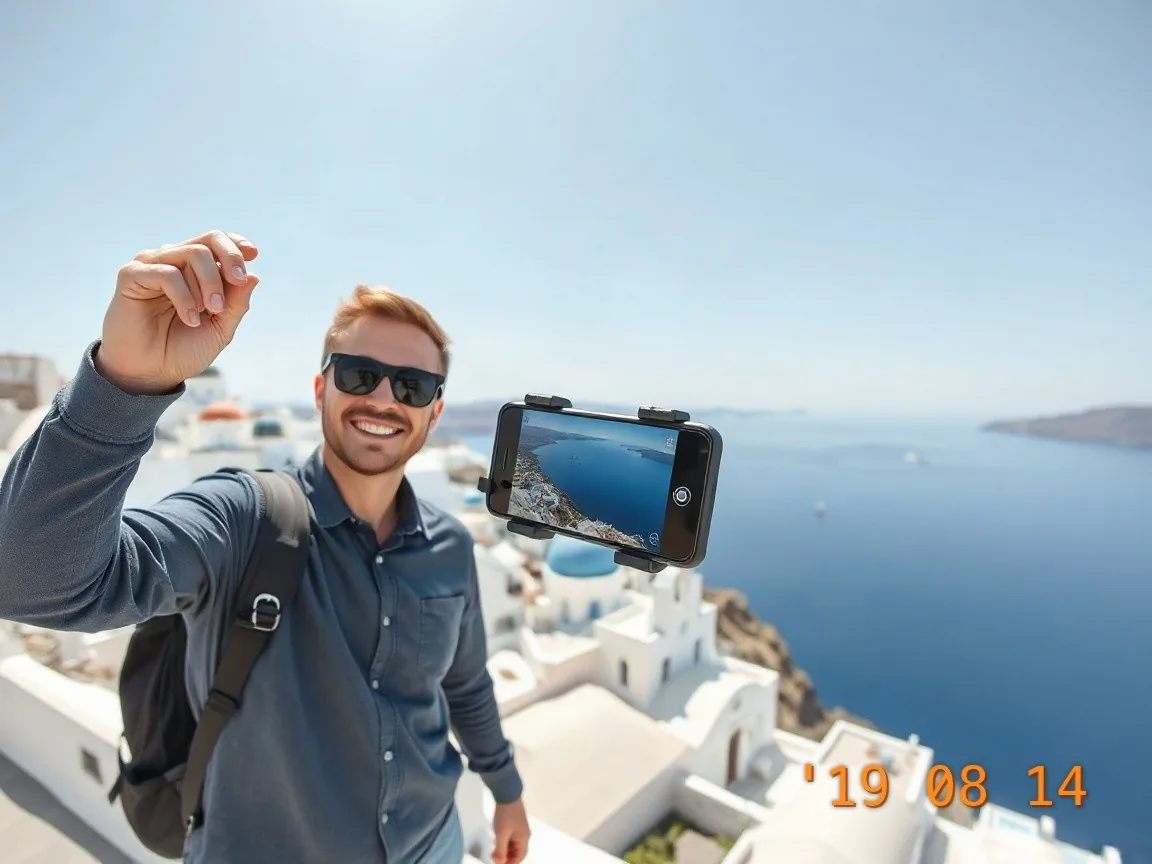
To put two pictures side by side, add both images, choose Side by side, then download one PNG. Equal-height photos line up edge to edge; unequal ones stay at their true proportions and sit centred on a shared baseline instead of being stretched. Add an 8–24 px white, black or transparent gap if you want a clear border between them. That is the usual way to put two pictures side by side for a listing, a comparison, or a chat collage — all on this page, in the browser, with no account required and no watermark on the file.
FOUR LAYOUTS
What each layout is for
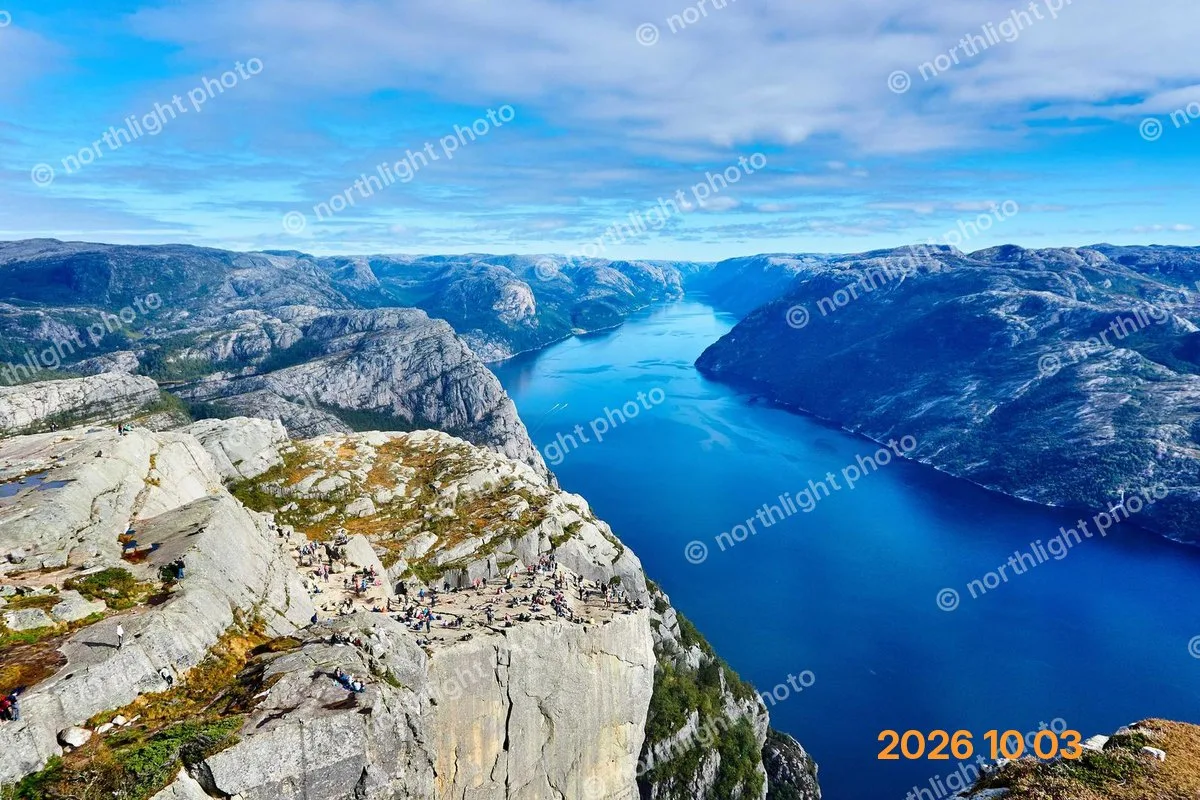
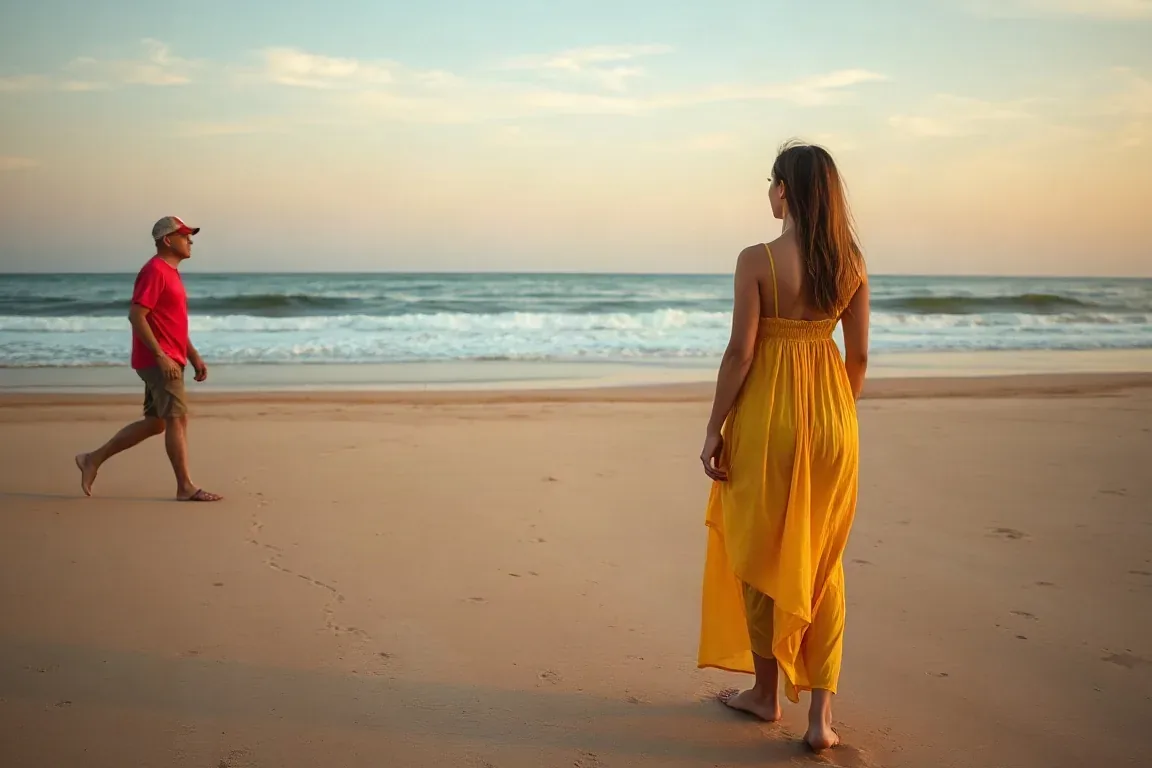
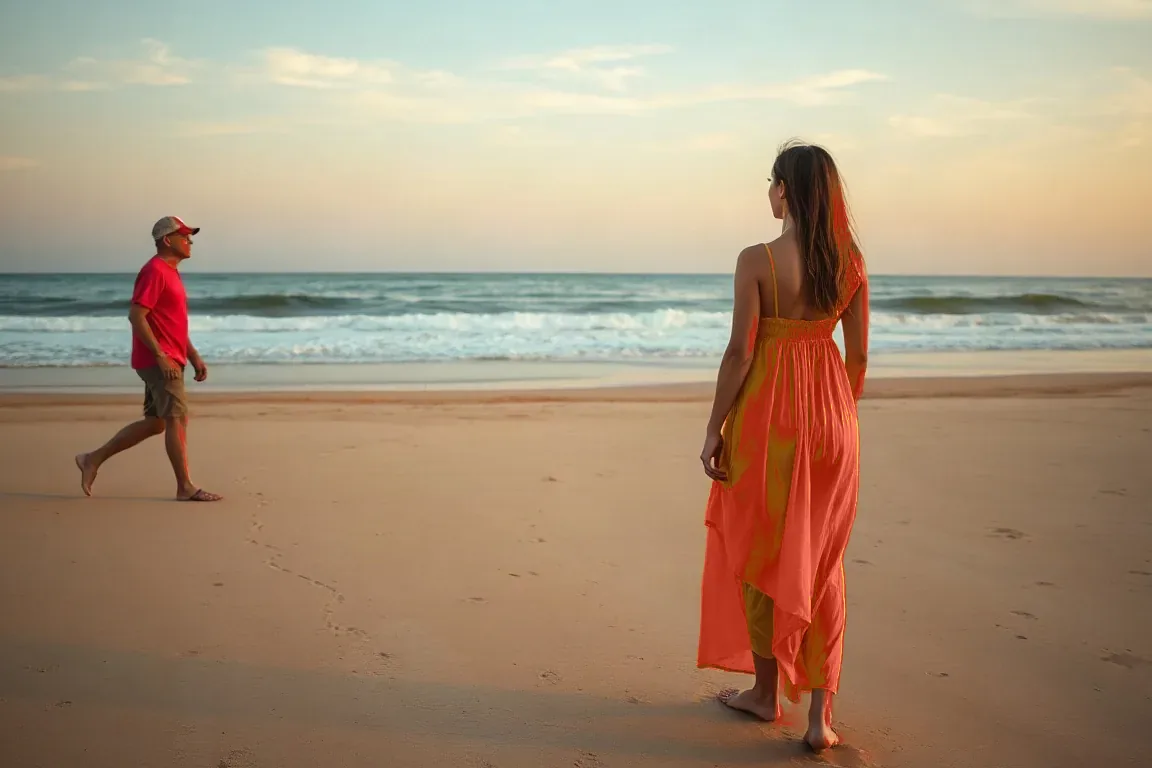
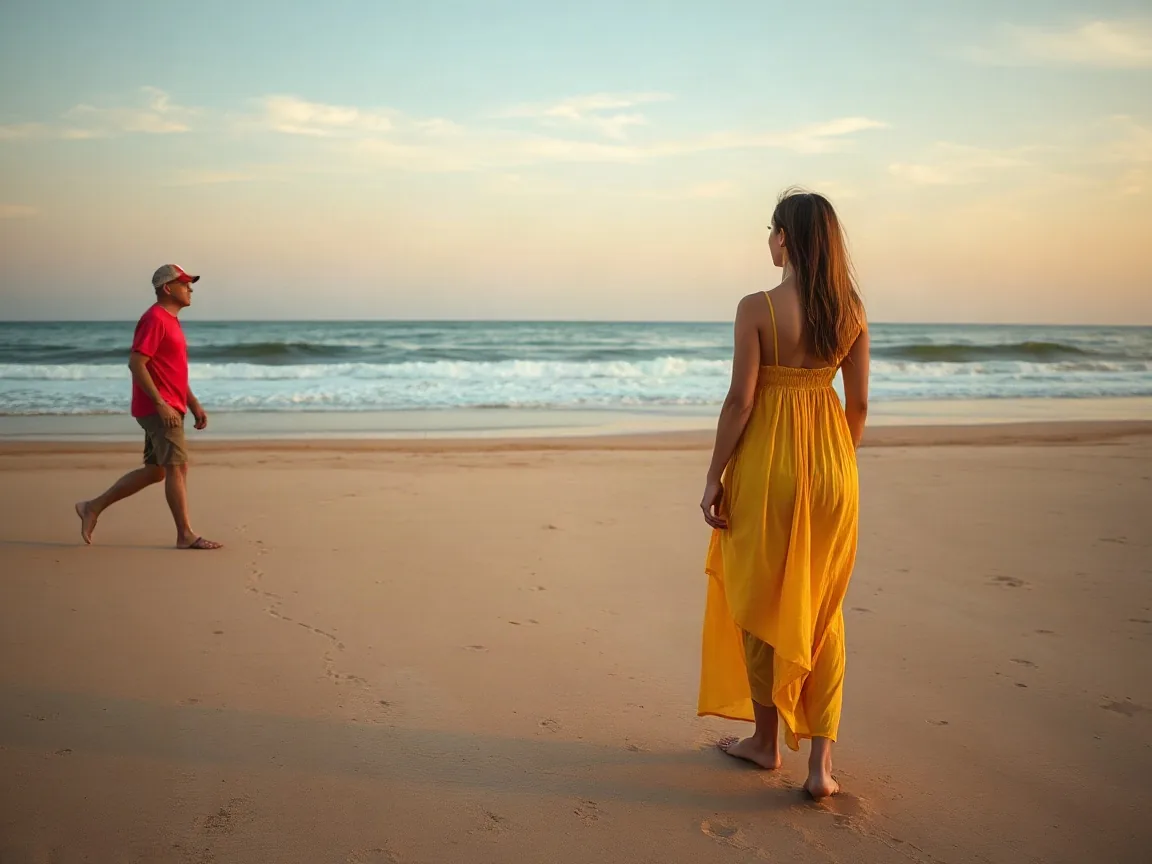
Side by sideBefore-and-after pairGridProduct shot setStackedLong screenshotSide by sideMarketplace comparisonOverlayLogo stampOverlaySoft blend
Merge Photos Into One Image in Three Steps
Add your images. Two is the common case, but you can drop dozens at once. The order you add them is the order they appear — drag any thumbnail to move it, or rotate, flip, duplicate and remove from the strip.
Choose a layout. Side by side, stacked, a grid, overlay, or free placement. Match sizes with Original, Magnify, Reduce or Crop when tiles need to line up, then pick an aspect if you need Instagram ratios.
Set the gap, then export. Pick the border thickness and colour (white, black or transparent), choose the output size and format (PNG, JPG or WebP), and download one flat file. Your source files are never modified.
If a file needs a crop or a rotation first, do that in the free editor. This page only combines.
Image Merging: Side by Side, Stacked, Grid, Overlay
This photo combiner is mainly about picking a layout. Side by side is for before-and-after pairs, product variations, and anything where the two images are meant to be read together. Photos of equal height line up cleanly; unequal ones get centred on a common baseline rather than stretched.
Stacked puts one photo above the other — the layout people want for a screenshot above a caption, or a wide banner split into two rows.
Grid takes three, four, six or nine images into a single frame: 2×2 for a set of product shots, 3×3 for a mood board.
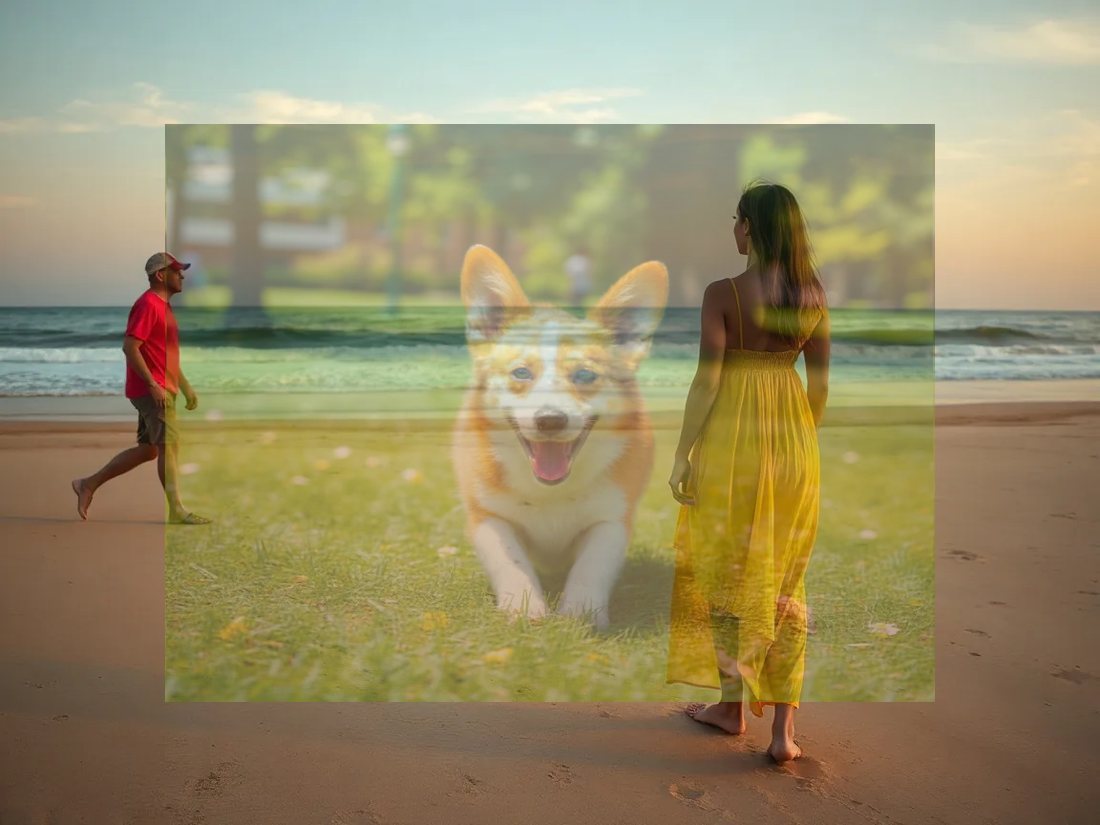
Overlay places one image on top of another with adjustable position and opacity — a logo over a photo, a signature over a scan, a watermark over your own work.
If one frame has a person or an object you do not want in the set, remove it first with Remove object.
Mix photos of different sizes without stretching them
Most combining goes wrong here. A portrait shot and a landscape shot have no common height, and the tempting fix — stretching one to match — makes faces wider and circles oval.
Two rules keep it clean. Fit by height and let the narrower image pad with the background colour, so both keep their true proportions. Or upscale the smaller file first so both start near the same pixel size; the result is sharper than stretching after the fact.
If one image is dramatically smaller — a 400-pixel thumbnail next to a 3000-pixel photo — combining them will make the small one look soft no matter what. Scale it up on its own first with Upscale image.
Add a border or a gap between photos
A gap does more than look tidy. Two photos placed edge to edge compete — the eye cannot tell where one ends. A 8 to 24 pixel gap in a third colour, or in the page's background, gives each image its own frame and makes a comparison read as a comparison.
White is the safe default for print and for marketplace listings, where a pure white margin matches the surrounding page. Transparent is right when the combined image will sit on a coloured background — a slide, a dark website header, a business card.
When that background should show through the subject itself, cut the subject out first with the Quitar el fondo, then combine on a transparent gap.
Join screenshots into one long image
Screenshots are the one case where stacking beats every other layout: chat threads, long settings pages, step-by-step tutorials. These are usually the same width and differ only in height, so they stitch into one tall image with no visible joins.
Two things to watch. Our tool joins at the file edges, so trim the duplicate overlap first if your screenshots repeat a header bar — otherwise you get the same toolbar five times down the page. And a very tall export can exceed what some chat apps will display; past about 10,000 pixels of height, split it.
For a dedicated walkthrough — trim headers, height limits, Stacked preset — open stitch screenshots. If the capture is already blurred, open Unblur image before you combine.
Instagram collage: 1:1 and 9:16 without cropping
Feed posts want a square; Stories and Reels want 9:16. Use Frame shape so the canvas is padded instead of cropped. The short guide is Instagram collage — it deep-links into this combiner with the shape already set.
Size match still controls how tiles line up. Frame shape only sets the outer canvas. Export JPG for a smaller upload, or PNG when the gap must stay transparent.
Overlay one photo on another
Overlaying is combining with layering: the top image sits above the bottom one at a position you set, with an opacity you control. At 100% it reads as a stamp — a logo or a signature on a scanned document. Around 30 to 60% it reads as a blend, which is how people add a texture or a second image into a photo.
Note that this is a compositing operation, not a blend mode engine. If you need multiply, screen or dissolve effects, that is a different (and heavier) tool.
Laying a mark on your own photo is this overlay. Taking a stamp or a logo off a photo you are allowed to edit is Remove watermark.
Image Combiner, Not an AI Image Combiner
Search results for this need mix two very different products. A photo combiner is a compositor: it places your images next to or on top of each other at the size you choose, and every pixel in the output came from your files. An AI image combiner instead generates new content — it blends a portrait into a background, or invents the space between two photos.
HivePic's page does the first job and only the first job. Nothing is generated, nothing is invented, and no model decides what your photo should look like. What you put in is what comes out, arranged.
A photo that is only dark or off-color is a different job. Image enhancer corrects light and color. It does not invent the space between two pictures, and neither does this page.
Sobre esta herramienta
HivePic's photo combiner runs in your browser — the images are combined on your own device and are not uploaded to a server. There is no account, and the file you download carries no watermark: it is the full resolution you asked for.
If the finished frame should change color, do that on Image color changer. This photo combiner only arranges the photos you added.
Version 1.3 · Updated 21 November 2026
GOOD TO KNOW
Questions about combining photos
How do I combine images into one image?+
Add two or more images, choose side by side, stacked, grid, overlay or free, set the gap and colour, then download PNG, JPG or WebP. Combining runs in your browser — nothing is uploaded.
What is the difference between a photo combiner and an image combiner?+
On this page they are the same tool: a compositor that places your photos or images into one frame. “Photo combiner” and “image combiner” are search variants for that job. An AI image combiner is different — it generates new pixels between or around your files. HivePic only arranges what you add.
What is a photo combiner?+
A photo combiner places two or more photos into one frame — side by side, stacked, in a grid, or one laid over another — and exports a single image. It does not generate new content. Every pixel in the file came from the images you added.
How do I make a square (1:1) or 9:16 collage?+
Choose Frame shape → 1:1 or 9:16. Photos keep their proportions; the canvas is padded with your background colour so nothing is cropped or stretched.
Can I use a GIF?+
Yes. Animated GIFs and animated WebP use the first frame only. The export is a still JPG, PNG or WebP — this page is not a GIF merger.
How many photos can I combine at once?+
Up to 36 in one frame. Past about nine, the page switches to a grid so the tiles stay readable. Very large batches may drop Output size to 2048 px so the export stays within the browser canvas.
How do I combine two photos into one?+
Add both images, choose side by side, stacked, grid, overlay or free, set the gap and the colour, then download PNG, JPG or WebP.
How do I merge two photos into one?+
Drop both photos into this page, pick a layout (side by side is the usual choice), set the gap or border, and download PNG, JPG or WebP. The merge runs in your browser — nothing is uploaded.
Can I merge images online for free without Photoshop?+
Yes. This photo combiner is free, needs no account, and runs in the browser. You pick a layout, set the gap, and download a full-size file with no watermark. Photoshop is not required.
How do I combine photos side by side on my phone?+
Open this page in your phone browser, add the photos from your camera roll, choose Side by side, set the gap if you want one, then download. The same layout options work on a phone as on a desktop.
Can I combine photos with different sizes or orientations?+
Yes. Original keeps each photo’s proportions and pads the shorter one. Magnify, Reduce or Crop match tile sizes so the row or grid lines up. Rotate or flip a selected thumbnail before you export.
Does combining photos reduce their quality?+
PNG and WebP keep the pixels the layout produced. JPG is a single lossy encode you choose on export. A small photo next to a large one still looks soft if Magnify was not used, because the small file never had those pixels.
Can I add a white border between photos?+
Yes. Choose white, black or transparent, and set the thickness. White is the usual choice for print and for marketplace listings. Transparent is for a slide or a dark page, where the gap should show whatever sits behind the PNG.
How do I put two photos side by side in one frame?+
Choose Side by side. The order of the thumbnails is the order in the frame — drag a thumbnail to move it — then download PNG, JPG or WebP.
Can I join several screenshots into one long image?+
Yes. Choose Stacked. Screenshots of the same width stitch into one tall image. Trim a repeated header before you add them, or that bar appears once per file. Past about 10,000 pixels of height, split the export, because some chat apps will not display a taller image.
Can I overlay one photo on another with transparency?+
Yes. The first photo is the bottom layer, and every photo you add can be moved, resized and rotated on its own, with its own opacity. At 100% a layer reads as a stamp. Around 30 to 60% it reads as a blend. This is not a blend-mode engine: there is no multiply, screen or dissolve.
Are my photos uploaded to a server?+
No. The photos are combined in your browser, on your device, and are not uploaded to a server.
Is it free? Do I need an account, and is there a watermark?+
Yes, it is free. You do not need an account. The file you download has no watermark, at the full size and format you chose.